Signing in
The instructions below will help CMS users sign into Contensis to edit their page on the DMU website.
We recommend that colleagues use Chrome, Safari, Edge or Firefox to access Contensis. We do not recommend that you use Internet Explorer. If you have an older version of Firefox, Contensis may not operate as expected. Please raise a call with the ITMS Service Desk to update the Firefox web browser remotely.
If you have a profile page but not yet a Contensis account please email your name and single sign-on username to webanddigital@dmu.ac.uk so we can set this up for you.
You can access Contensis at mycms.dmu.ac.uk. Accessing Contensis via this link will direct you to the log-in page below.
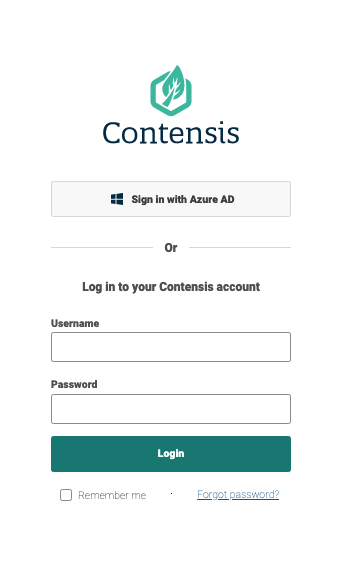
To sign in, click the Microsoft ‘Sign in with Azure AD’ button. You can ignore the 'username' and 'password' fields below this button.
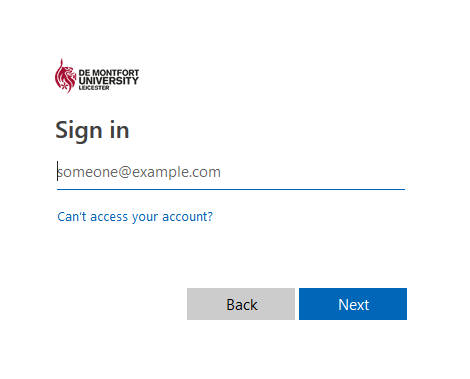
Once you have clicked on the ‘Sign in with Azure AD’ button, you may be directed to the first step of the DMU Single Sign On system, as below. Please enter your DMU username followed by '@dmu.ac.uk' in the sign in area and then click next, e.g. jsmith01@dmu.ac.uk
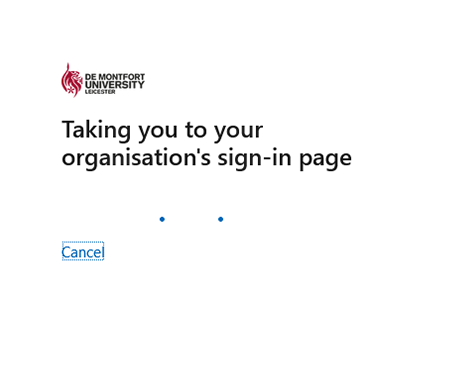
The following screen will appear advising you are being directed to the DMU Single Sign on screen.
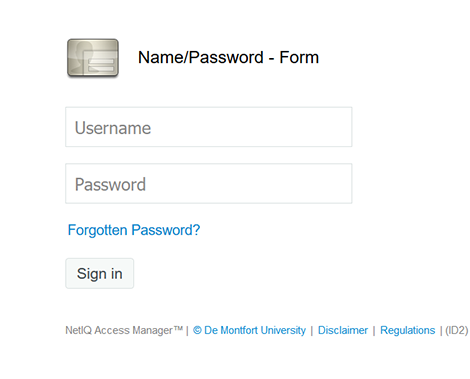
Next, enter your regular DMU username and password into the Single Sign On field below and click login. E.g. jsmith01 and your password. You should then gain access to Contensis.
Sometimes, you'll need to sign in for the first time for the Web and Digital team to grant you the permissions to edit your staff profile. If this is the case, after you've successfully signed in, please email webanddigital@dmu.ac.uk so we can assign permissions to the appropriate areas of the website. Once we have confirmed this, continue onto the next sections.
Next - Navigation