-
Login Page
On the next screen, you'll see a login page that looks like this.
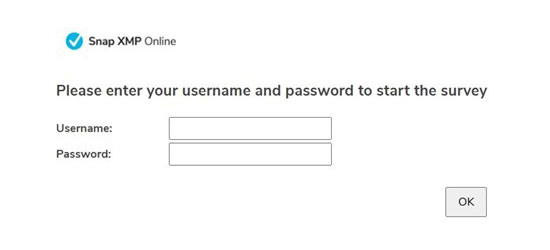 The image shows the Snap XMP Online login screen with username and password inputs.
-
Username
Enter your Student Number without the 'P'.
For example, if your Student Number is P1406972, type 1406972 in the Username field.
-
Password
Use the password: 2026
-
Survey Access
After entering your Username and Password, click OK. You’ll then be taken to the start of the survey.